Listening
Speak while the bars move.

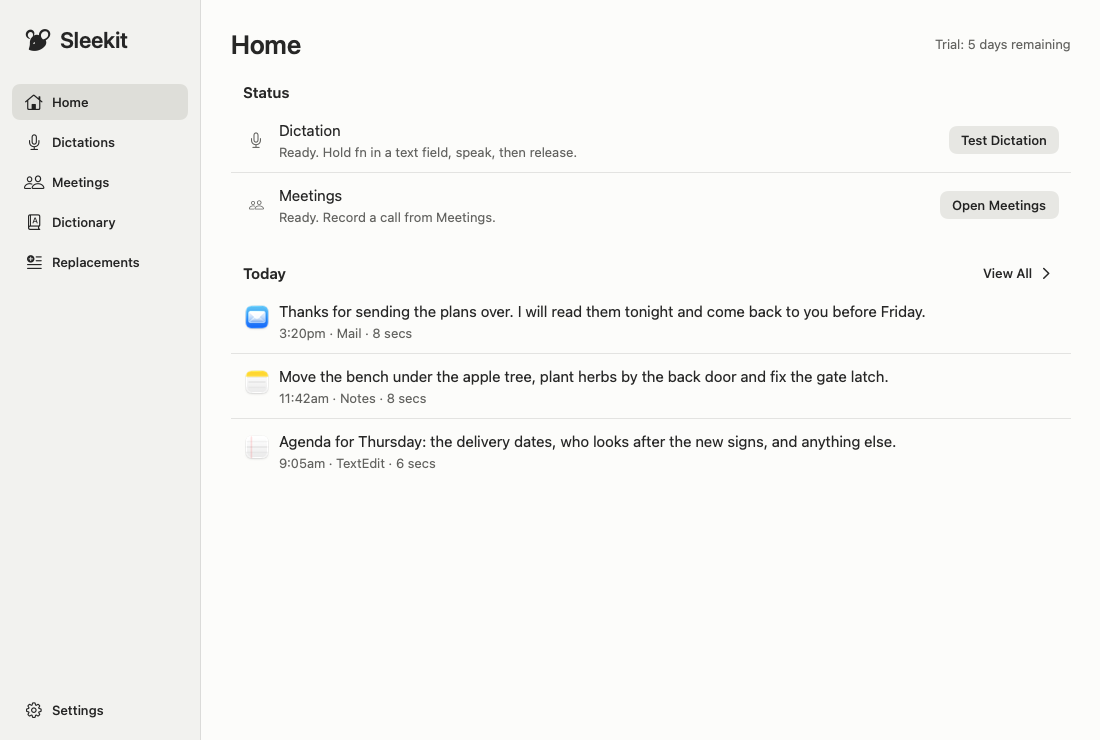
Choose Set Up Dictation or Set Up Meetings and follow the steps.
Click where you want your text, hold your dictation shortcut, speak and let go.
Your 7-day free trial starts with your first dictation into another app or first meeting recording.
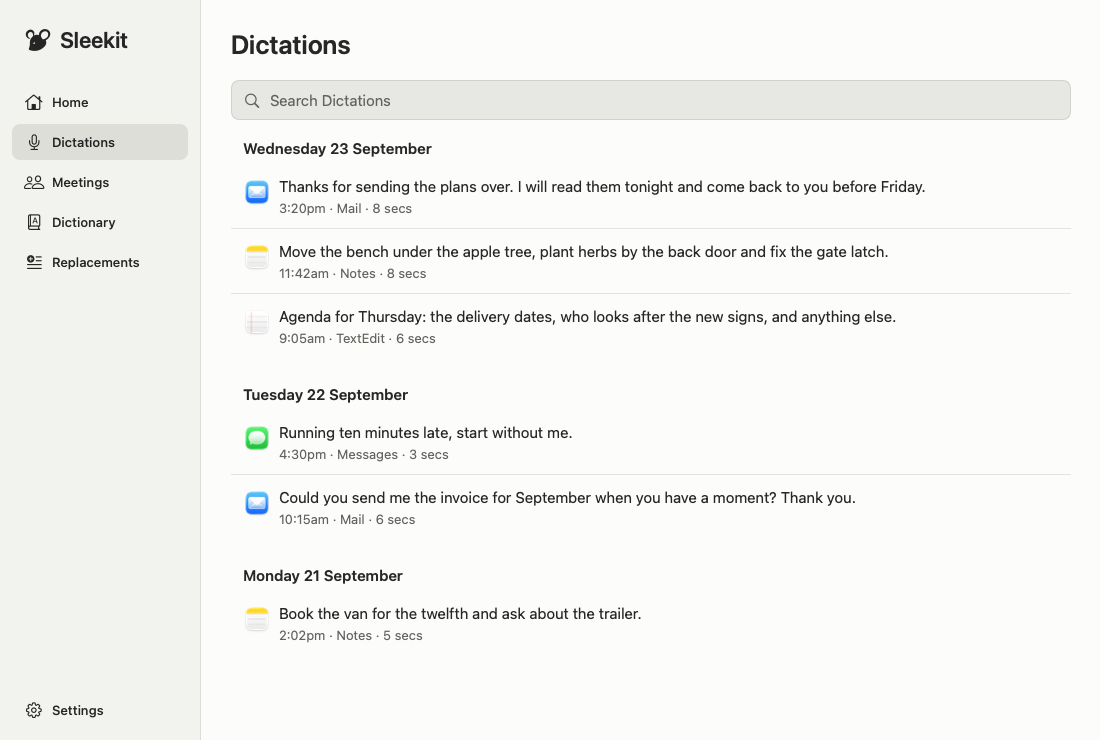
Where you’re typing, with a copy saved in Dictations. Search the list to find and copy a previous dictation.
Choose Play Dictation to listen to saved audio, or Transcribe Again if there’s no text. Change audio retention in Settings → Privacy.
Use Delete Dictation… on its row. To remove all dictations and meetings, use Settings → Privacy → Storage → Delete….
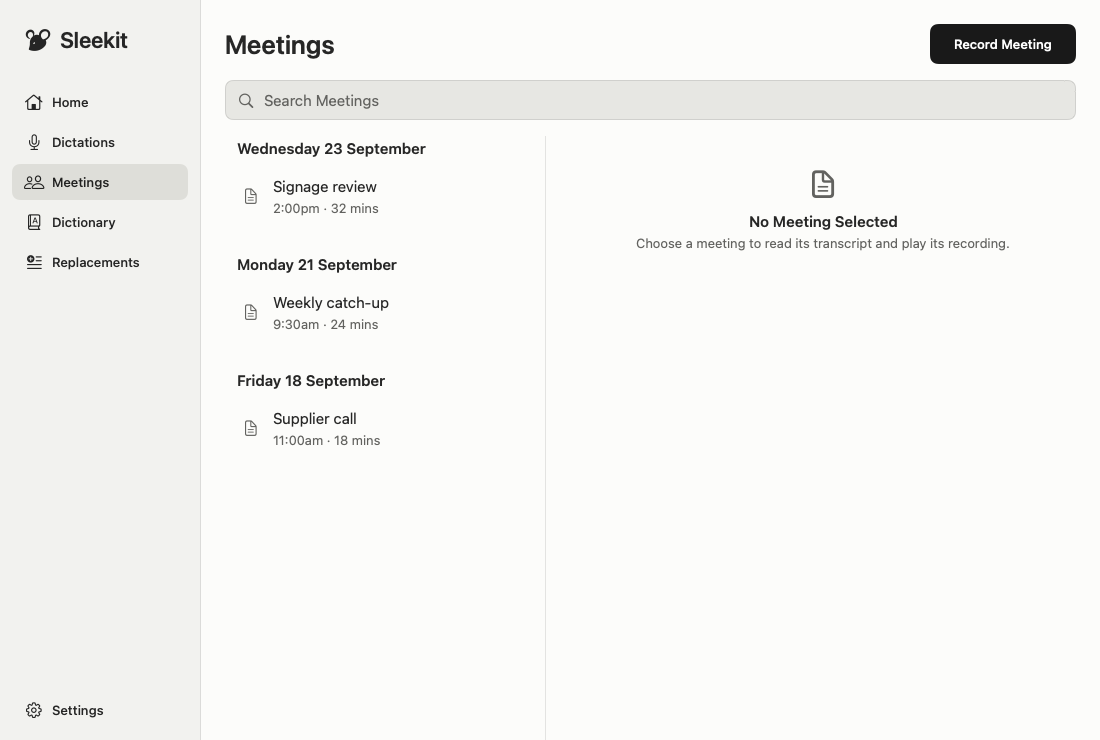
Choose whichever is easiest:
Finish setup if asked. Choose Stop when you’re done.
Search Meetings and open a meeting to read or listen. Use Copy Transcript, Export → Export Markdown… or Export → Export Plain Text… for text; More → Export Audio… for the recording.
Choose Copy Transcript and paste it into your favourite AI chat.
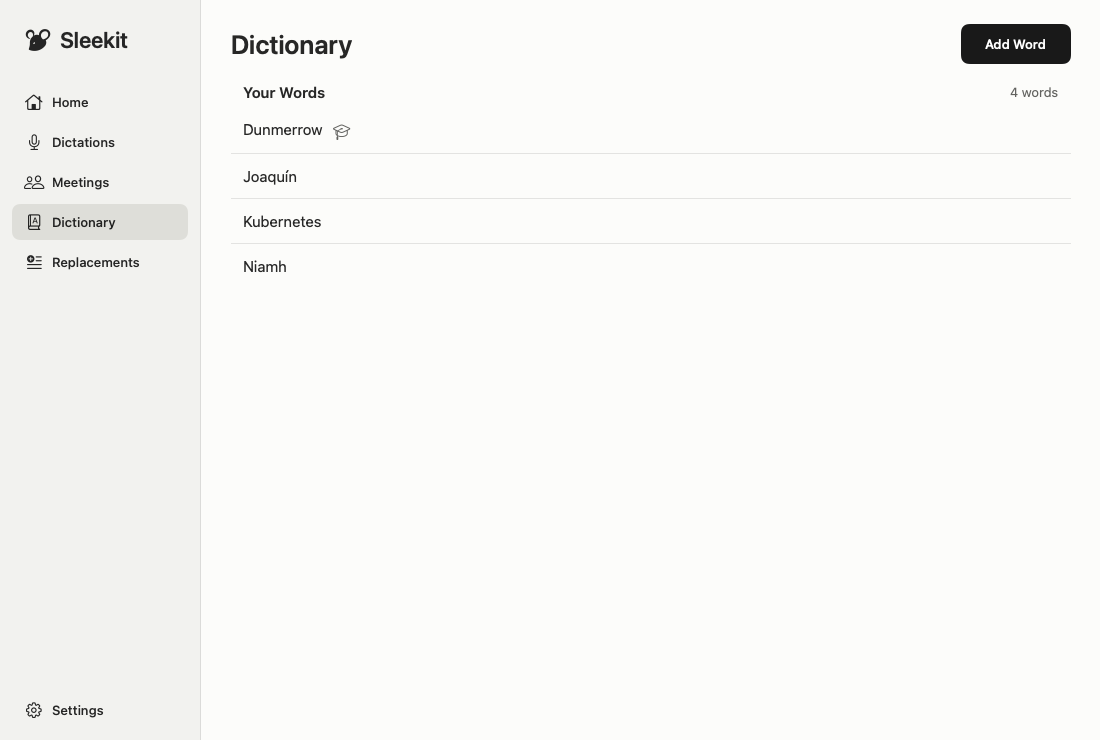
Open Dictionary → Add Word. Type the spelling and press Return. Add more words, then choose Done.
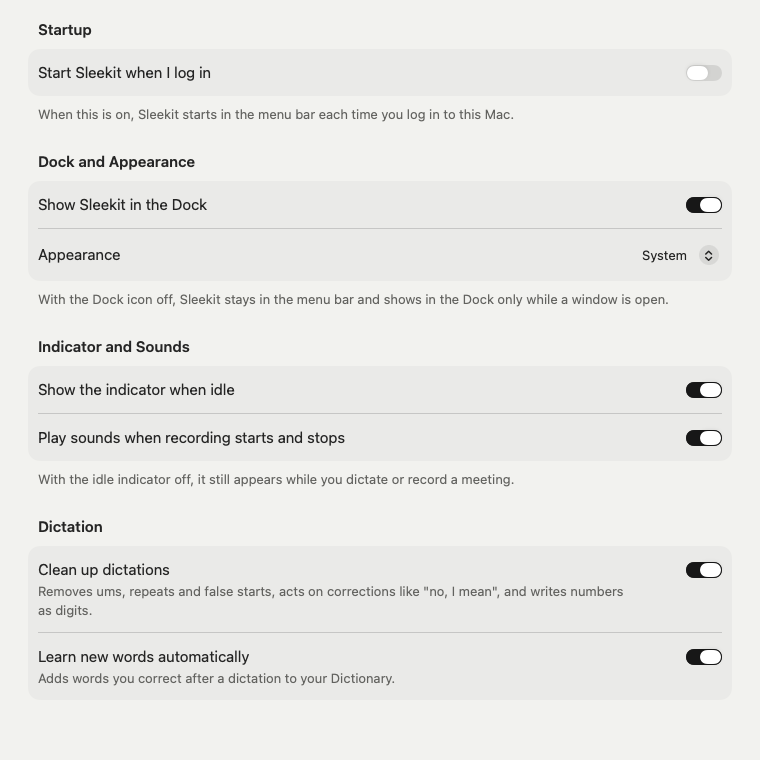
Sleekit learned that word from a correction you made. Turn off Learn new words automatically in Settings → General.
Use Edit on its row to change the spelling, or Delete to remove it.
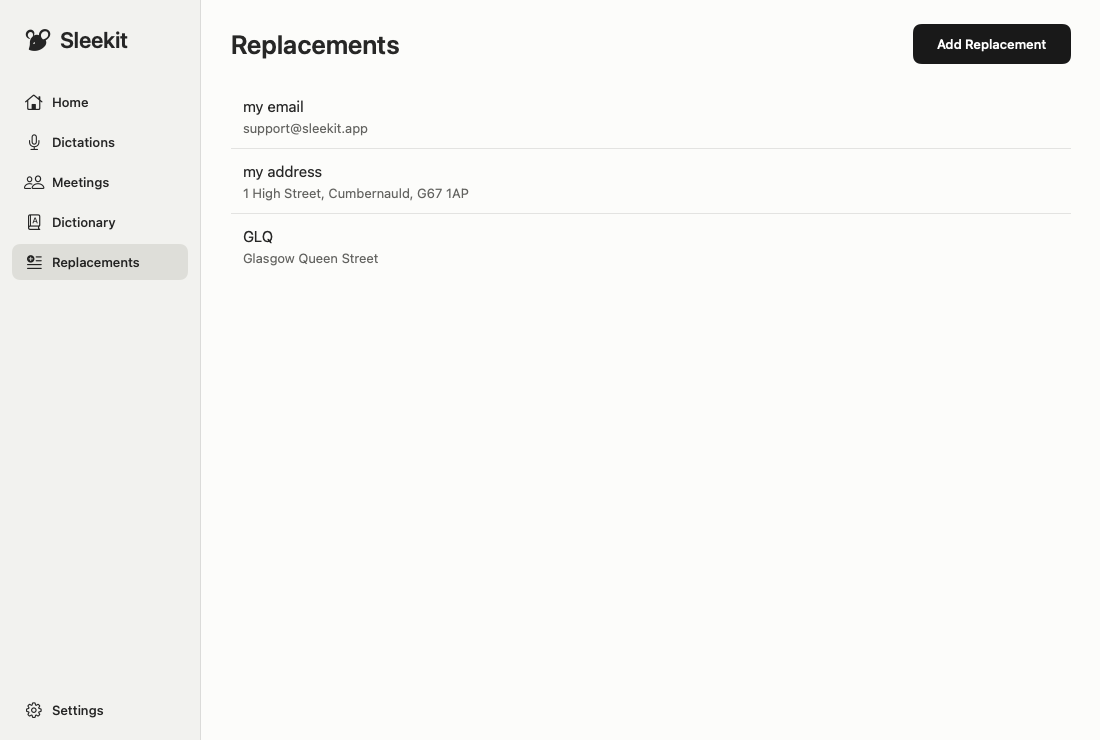
A short phrase that expands into text you use often. For example, “my email” can become support@sleekit.app.
Open Replacements and choose Add Replacement. Enter the phrase to say and the text to write, then save it.
Open its row, edit the phrase or text, then save. You can delete it there too.
Open Settings → Shortcuts. If fn opens the emoji picker, set System Settings → Keyboard → Press fn (Globe) key to to Do Nothing.
Switch off Clean up dictations in Settings → General.
Open Settings → Audio. Your choice applies to the next recording.
Open Settings → Privacy for audio retention, history deletion and updates; Settings → Licence for your key and Free Up This Mac.
Hold fn to dictate, or press Control–Option–M to record a meeting. Change your keys in Settings → Shortcuts.
Speak while the bars move.
Sleekit is turning your speech into text.

Your words have reached the app.

Press Command-V to paste your words.

During dictation, Cancel discards the recording. If you started without holding a key, Finish sends it to be written up. A meeting shows its timer and a Stop button.
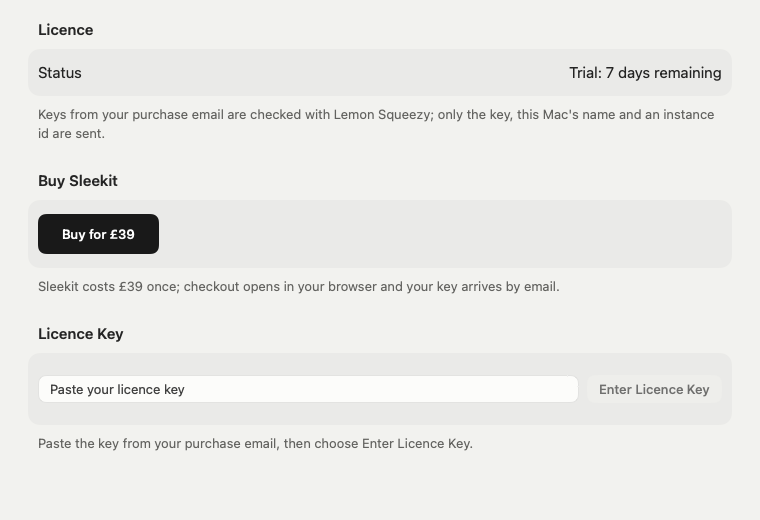
In Settings → Licence, paste the whole key from your purchase email and choose Enter Licence Key. Activation needs an internet connection.
Up to 3 of your Macs. Licence Terms.
To move to a new Mac, go online on the old one and choose Settings → Licence → Free Up This Mac. Enter your key on the new Mac.
Lost or broken old Mac? Email support@sleekit.app to free it up.
Open Lemon Squeezy’s My Orders, enter your purchase email address and follow the emailed link.
You can still read, copy and export your recordings. Buy a licence to make new dictations and recordings.
Switch Sleekit on in System Settings → Privacy & Security → Microphone. Check your microphone in Sleekit’s Settings → Audio.
Click in a text field and switch Sleekit on in System Settings → Privacy & Security → Accessibility. If the bar says Copied, press Command-V. You can also copy the text from Dictations.
Switch Sleekit on in System Settings → Privacy & Security → Screen & System Audio Recording. Reopen Sleekit if macOS asks.
Choose Report a Problem… from Sleekit’s menu bar menu, then Open Email Draft. Write what you did, what happened and what you expected.
Choose Show App Log in Finder in the same window. Check app.log before attaching it: logs can include app names, file paths and error details.